
TV Cast Pro for Roku
2kit consultingVideo Players & Editors
4.4638.00 Reviews
- Version
- 2.48
- Installs
- 50.00K
- Age Rating
- Everyone
Screenshots
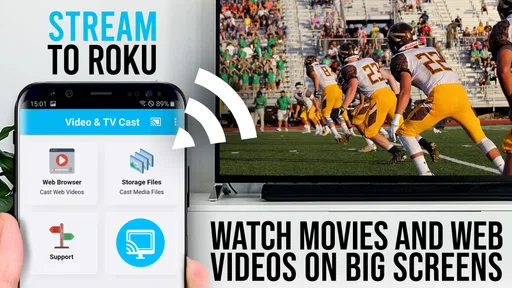
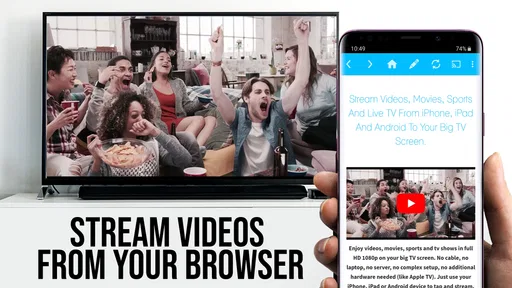
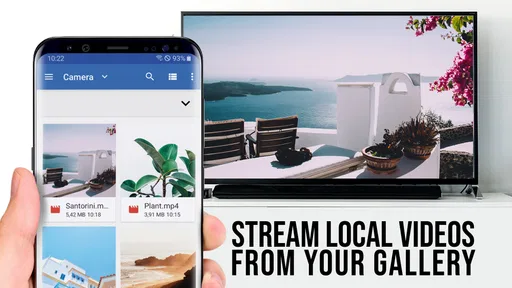
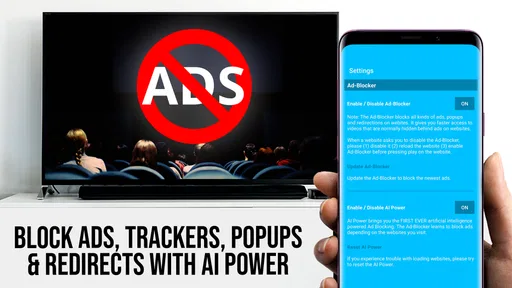
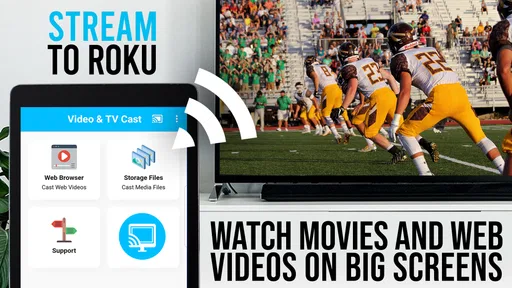
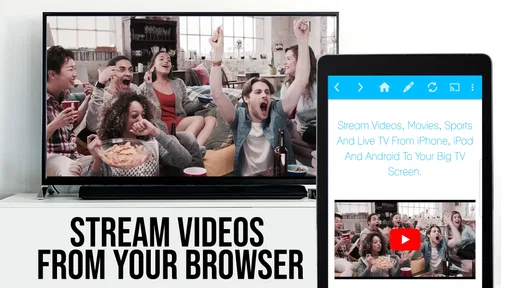
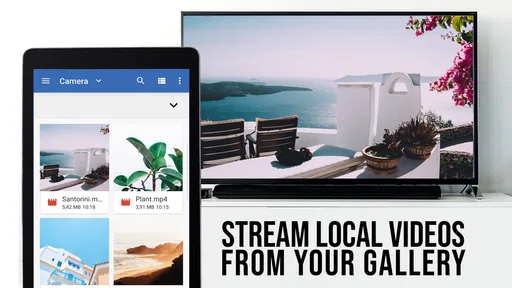
Our Review of TV Cast Pro for Roku
 Analysis by Appyee
I find the most useful way to judge a Roku casting app is not by how impressive its feature list sounds, but by whether it helps when the video you want is sitting in a browser rather than a familiar streaming service. That is the gap TV Cast Pro for Roku is meant to fill. It is a paid video-player and editing app from 2kit consulting, aimed at sending online video and live content to a Roku while keeping browsing and remote control on your phone. If that is a regular part of how you watch, it has a clear purpose; if you mainly use Roku channels, it may feel like an extra step.
Where the first attempt can get stuck
The first hurdle is usually not the casting button but the connection between the phone and Roku. They need to be on the same Wi-Fi network for the app to find the television. In a home with separate guest and regular networks, or a router that splits devices across bands or access points, it is easy for both screens to appear connected while still being unable to see one another. I would check the network name on each device before assuming the app is broken.
It also helps to separate “casting” from full screen mirroring in your expectations. This app is designed around web videos and online media, not as a guarantee that every phone screen, app, or protected video can be reproduced on a television. A page can load normally in a browser yet offer a video player that does not hand off cleanly. That distinction matters: the app can help locate and send supported media, but it cannot make every site behave like a Roku channel.
Setup checks that save time
The basic setup is straightforward: install the app, keep the phone and Roku on the same Wi-Fi, and follow the on-screen prompts to connect. I would do that first with a simple, familiar web video rather than beginning with a long live stream or a complicated page. A short test helps identify whether the problem is discovery, the page’s player, or the stream itself, without wasting time troubleshooting all three at once.
If Roku does not appear, I would reconnect both devices to the intended home network and reopen the app before changing several settings at random. If the Roku is asleep or the connection has recently changed, waking it and retrying can also be a sensible basic check. These are ordinary network and device steps, not a promise that every router configuration will work. The practical point is to establish a clean connection before judging playback quality.
Recovering a browser-to-TV workflow
Once a video has started on a web page, the useful routine is to let the page load fully, identify the actual video rather than an advertisement or preview, and then try sending it to Roku. Some pages contain several media elements, so choosing the wrong one may appear to start casting without producing the content you wanted. When a page has multiple players, I find it is worth checking which one is active before repeatedly tapping cast.
If playback stops or never begins, I would return to the page and test the clip on the phone first. If it fails there too, the issue is probably with the source or its connection rather than the TV. If the phone plays it but Roku does not, try a different, short video from a straightforward site; success there points toward a limitation in that particular page or format. This small comparison is more useful than immediately reinstalling the app or resetting the Roku.
Live streams need a little more patience than short clips. They can depend on a steady connection and on how the source delivers its video, so a brief interruption may come from the stream rather than the casting app. For an event you do not want to miss, I would test the same source before it begins and keep the phone available to retry. A cast app is convenient, but it is not a substitute for a dependable official channel when a broadcast is important.
When the app is not the cause
There are several points in this chain where playback can fail: the website, the phone’s connection, the home network, the Roku, or the video format the page uses. A spinning player is not enough evidence to identify which one is responsible. I use a short test clip and compare phone playback with Roku playback to narrow it down, then retry after restoring the shared Wi-Fi connection. That avoids blaming the app for a site that is temporarily unavailable.
Network congestion can also make a good setup feel unreliable. If other people are streaming or downloading heavily, a live video may buffer even though the app connected successfully. Moving the phone closer to the router is not always the answer, because the Roku’s connection matters too. For a long movie, I would prefer a source with a stable stream and give the video time to settle before concluding that the app cannot handle it.
How it fits into everyday Roku viewing
I find the key question with TV Cast Pro for Roku is whether it fills a gap in your usual viewing: it is most useful when you discover a video in a browser and want to watch it on your Roku instead. I’ll look at the small checks that can make that handoff smoother, then explain when a native Roku option is the better route. A little preparation can spare you from troubleshooting the wrong part of the setup.
A useful tool for specific viewing habits
The strongest reason to use this app is having a web video that you want to watch from the sofa rather than holding a phone for the whole clip. Think of finding a cooking demonstration while planning dinner: I can browse on the phone, send the relevant video to the television, and keep the recipe page close at hand. It is a small but practical improvement when the material is online and not already easy to find through a Roku channel.
It can also suit someone who regularly follows web-based video or livestreams. Instead of treating the phone and Roku as separate places to search, the browser-to-TV route gives the phone a role as the discovery tool and the television as the viewing screen. That workflow is most appealing when the source is already known and the user wants a quick way to move from finding a clip to watching it larger.
I would not choose it as my default for every kind of viewing. If a service has a reliable Roku app, using that app is usually simpler: it avoids switching between a web page and a casting connection and may offer a more predictable playback experience. Likewise, people who mainly want to mirror games, presentations, or every part of a phone screen should check that their specific goal is supported rather than assuming a browser-focused casting tool does universal mirroring.
How it compares with familiar alternatives
Compared with opening a video directly in a Roku channel, this app’s advantage is access to web content that may not be part of the usual channel routine. The trade-off is that a browser page can be less consistent than a purpose-built television app. A site can change its player, place several videos on one page, or use a delivery method that does not transfer smoothly. For a service I watch daily, I would favor its native Roku option; for an occasional clip that is easier to find on the web, casting can be more convenient.
Compared with using the phone alone, the television gives shared viewing a more comfortable scale, while the phone remains handy for browsing and control. Compared with a dedicated streaming device app, however, the route depends on a working connection between the two devices and the source page. That makes TV Cast Pro a useful companion rather than a replacement for Roku’s ordinary viewing options. Its value rises with the number of times you encounter web video that your normal setup does not handle conveniently.
Small habits that make casting less frustrating
My first practical tip is to bookmark or otherwise keep track of sites that have worked well for you, rather than assuming every page will cast equally. When you find a reliable source, testing one short clip can save trouble later, especially before settling in for a longer video. If a page is cluttered with several players, choosing the video itself carefully is more effective than tapping every visible control.
My second tip is to treat the phone as a browser and controller, not as proof that the TV must be able to play whatever the phone can display. A video that runs in a mobile browser may use a format or page behavior that does not transfer as expected. When the goal is important, look for the same content in a Roku channel or another source designed for television. That backup plan is a sensible trade-off, not a failure of the app.
For shared households, it is also worth making the connection routine easy for everyone who might use it: know which Wi-Fi network the Roku is on and keep the Roku remote nearby while testing. The app includes a phone remote, but having the physical remote available can help if you need to navigate the Roku directly during setup or recovery. A casting tool works best when it removes friction, not when it becomes the only way to control the television.
Cost, audience, and expectations
TV Cast Pro for Roku costs $6.99, so I would buy it for a recurring need rather than for a single clip. Its average rating is 4.4 from around 2.5 thousand ratings, and it has more than 50 thousand installs. Those figures offer context about its audience, but they do not tell me whether a particular website or home network will work well. The app is rated for Everyone, and its current version is 2.47; it runs on devices with Android 7.0 or later.
The price makes the decision fairly concrete: if web videos are a regular part of your viewing and you value sending them to a Roku, a dedicated browser-and-remote tool may earn its place. If you rarely watch online video outside established streaming services, the Roku channels you already use may be enough. I would also skip it if your main expectation is flawless playback from every website, because that depends on the source as much as on the app.
Setting Up is a Cinch
First off, let’s talk setup. You don’t need to be a tech whiz to get TV Cast Pro for Roku up and running. Just download the app on your phone, ensure your device and Roku are on the same Wi-Fi network, and boom—you’re ready to roll. The app guides you through the process with clear instructions, so you’re not left scratching your head.
User-Friendly Interface
The interface is as smooth as butter. Everything is laid out in a straightforward manner, making navigation a piece of cake. I love how you can easily switch between different media types—whether it’s photos, videos, or even web pages. The app keeps it simple, which is exactly what you need when you’re trying to relax and enjoy some screen time.
One of my favorite features? The built-in browser. It lets you surf the web and cast directly without having to download any additional apps. Just browse, tap, and stream. It’s that simple!
Streaming Performance
Now, onto the most crucial part—performance. I was pleasantly surprised by how well TV Cast Pro for Roku handled streaming. The quality is top-notch, with minimal lag or buffering. I streamed everything from cute cat videos to full-length movies, and the app handled it like a champ. The clarity and sound quality were impressive, making it feel like I was watching directly from a high-end streaming service.
Another cool aspect is the app’s ability to support various video formats. Whether it’s MP4, M3U8, or even live streams, this app does it all. It’s like having a mini media hub right in your pocket.
Customization and Extras
What I really dig about this app is the level of customization it offers. You can adjust playback settings, control the volume, and even set parental controls if you’ve got little ones around. Plus, the app offers a handy bookmark feature for your favorite sites and videos. No more searching around trying to find that one hilarious video you watched last week!
The remote control feature is another bonus. You can use your phone as a remote, which is super convenient if your actual remote is playing hide and seek with your couch cushions.
Final Thoughts
All in all, TV Cast Pro for Roku is a game-changer for anyone who loves streaming. It’s user-friendly, versatile, and performs exceptionally well. Whether you’re a tech-savvy individual or someone who just wants to enjoy content on a bigger screen without any fuss, this app is definitely worth checking out.
So, if you find yourself wanting to elevate your streaming game, give TV Cast Pro for Roku a try. You might just find it becomes your new favorite app!
Verdict
Strengths of TV Cast Pro for Roku
- Easy to connect and start streaming.
- Supports a wide range of video formats.
- No ads for a smooth experience.
- High-quality video casting.
- User-friendly interface and navigation.
Limitations of TV Cast Pro for Roku
- Requires a stable Wi-Fi connection.
- Limited support for some file types.
- Subscription needed for all features.
- Initial setup can be time-consuming.
- No offline viewing options.
Other Releases by 2kit consulting
View All
TV Cast Pro for Fire TV
Video Players & Editors4.1

TV Cast | Ultimate Edition
Video Players & Editors4.0

Screen Mirroring + for Fire TV
Tools4.4

Screen Mirroring Pro for Roku
Tools4.5
Similar Picks in This Category
View All
Google TV
Google LLC3.9

iTunes
Apple4.7

YouTube
Google LLC3.8

MX Player
Amazon Mobile LLC4.2

CapCut - Video Editor
Bytedance Pte. Ltd.3.5

PLAYit-All in One Video Player
PLAYIT TECHNOLOGY PTE. LTD.4.5
Frequently Asked Questions
What is TV Cast Pro for Roku and how does it work?
TV Cast Pro for Roku is an app that allows you to stream videos, photos, and music from your smartphone or tablet directly to your Roku device. It works by connecting your device and Roku to the same Wi-Fi network, enabling seamless casting of content to your TV screen. The app supports a wide range of media formats and provides a user-friendly interface for easy navigation.
Is TV Cast Pro for Roku compatible with all Roku models?
TV Cast Pro is compatible with most Roku models, including Roku Streaming Stick, Roku Express, and Roku Ultra. However, it is essential to ensure your Roku device supports screen mirroring. Check the specifications of your Roku model to confirm compatibility and ensure both your device and Roku are updated to the latest firmware for optimal performance.
Are there any subscription fees or hidden costs associated with TV Cast Pro for Roku?
While TV Cast Pro is a paid app with a one-time purchase fee, it generally does not have recurring subscription charges. However, some additional features and premium content might require in-app purchases. Always review the app's payment details and descriptions on the app store to understand any potential costs before downloading.
What are the key features of TV Cast Pro for Roku?
TV Cast Pro offers several key features, including the ability to cast high-definition videos, stream photos and music, and browse the web directly from your device. The app also supports playlists, subtitles, and a wide range of video formats. Its user-friendly interface makes it simple to navigate and control your streaming experience directly from your smartphone or tablet.
How can I troubleshoot common issues with TV Cast Pro for Roku?
If you encounter issues with TV Cast Pro, first ensure that both your Roku and casting device are on the same Wi-Fi network. Restart both devices to resolve connectivity issues. Check for app updates and install any available updates. If problems persist, consult the app’s help section or contact customer support for further assistance.
